
Setting up and verifying your personal account takes just a few minutes. To keep our platform secure and meet anti-money laundering regulations, we need to confirm who you are before you can start trading.
Step 1: Create Your Account
1. Go to the sign-up page here and select Rest of World as your residential location.
2. Enter your email address and create a strong, unique password.
3. Review the Terms and Conditions and Privacy Policy, then tick the box to accept.

4. If you have a referral code, enter it in the designated field. If you used a referral link, this will populate automatically. Click Sign Up.

5. Locate the six-digit verification code sent to your email. If it does not arrive within a few minutes, check your spam, junk, and promotions folders. Enter the code on screen to activate your account.
Note: The email verification link is valid for a few days. If it expires, you can request a new code on the login screen.
Step 2: Verify Your Identity
Before you begin, please ensure:
- Valid ID: You have your physical, original Australian Driver’s Licence or Passport ready (photocopies and digital IDs are not accepted).
- Device: You are using a device with a working camera (a mobile phone is recommended for the best photo quality).
- Connection: Your VPN is turned off, as a VPN will block the verification process.
Profile Submission
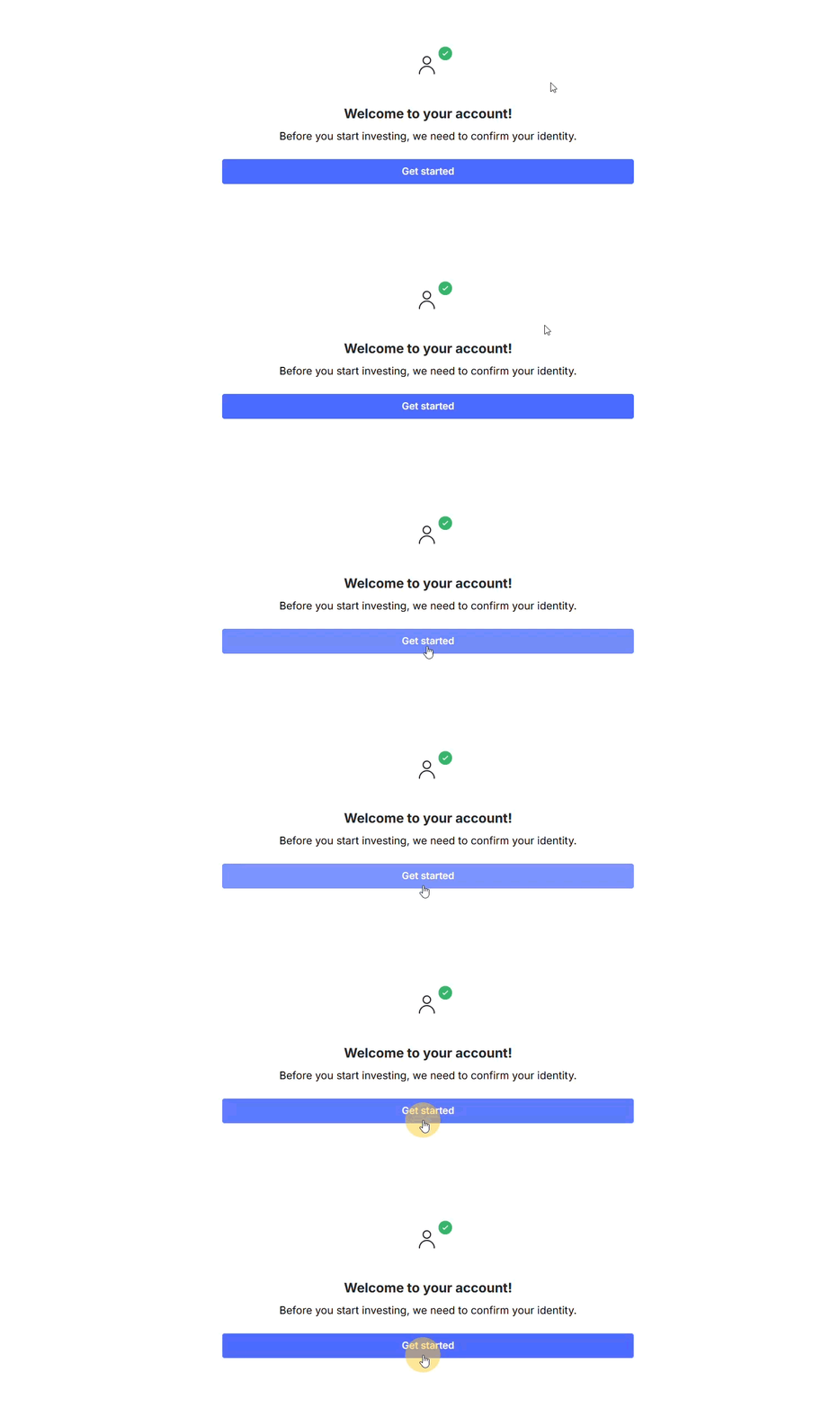
1. Log in to your account, click Get Started, and select Start Verification.
2. Select your account purpose and source of funds from the dropdown menus.
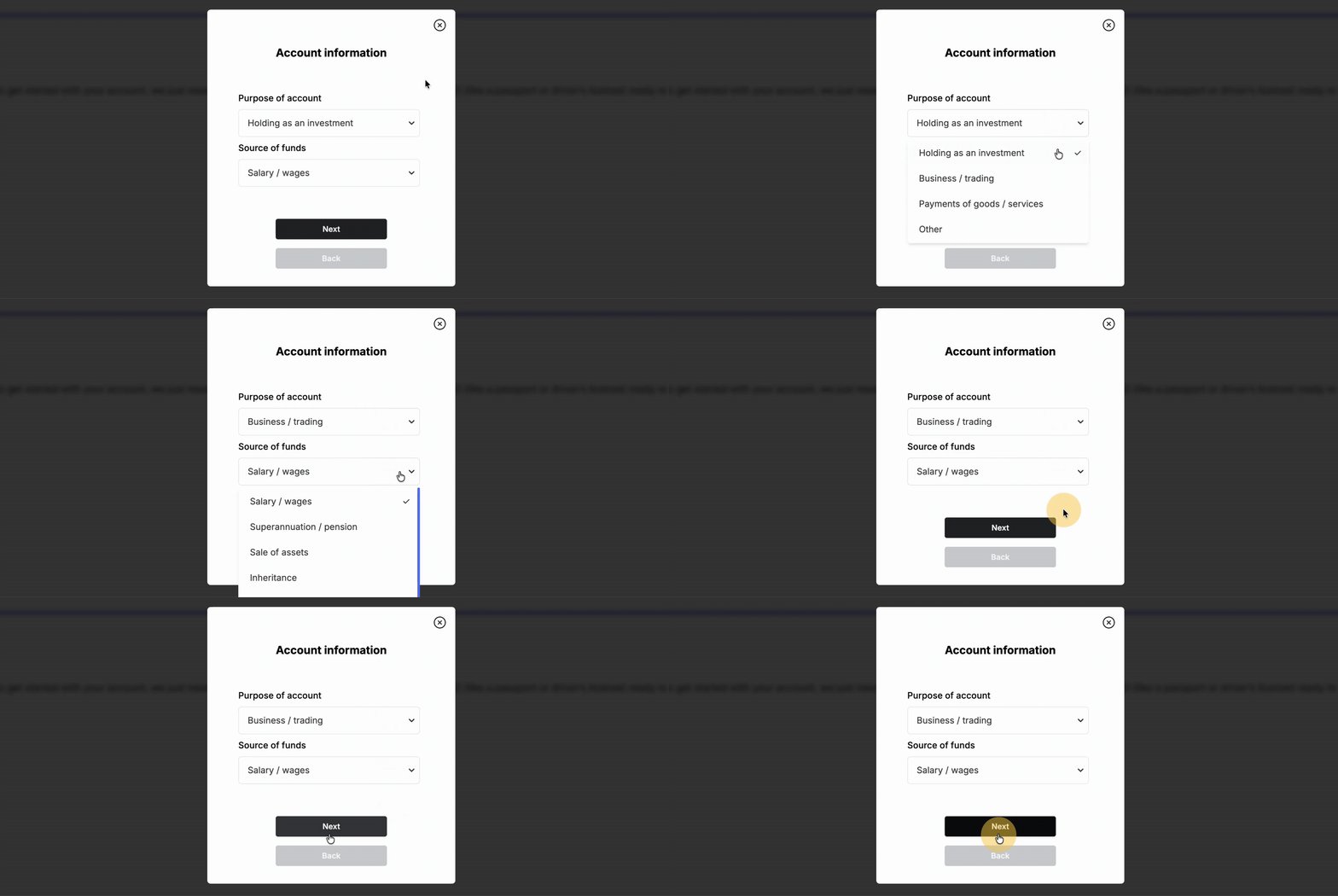
3. Enter your current occupation. Click Continue, then Begin Verifying.
4. Enter your full name and date of birth exactly as they appear on your physical ID document.
ID and Selfie Upload
5. Select either Driver’s Licence, Passport or National ID. Ensure the document is valid.
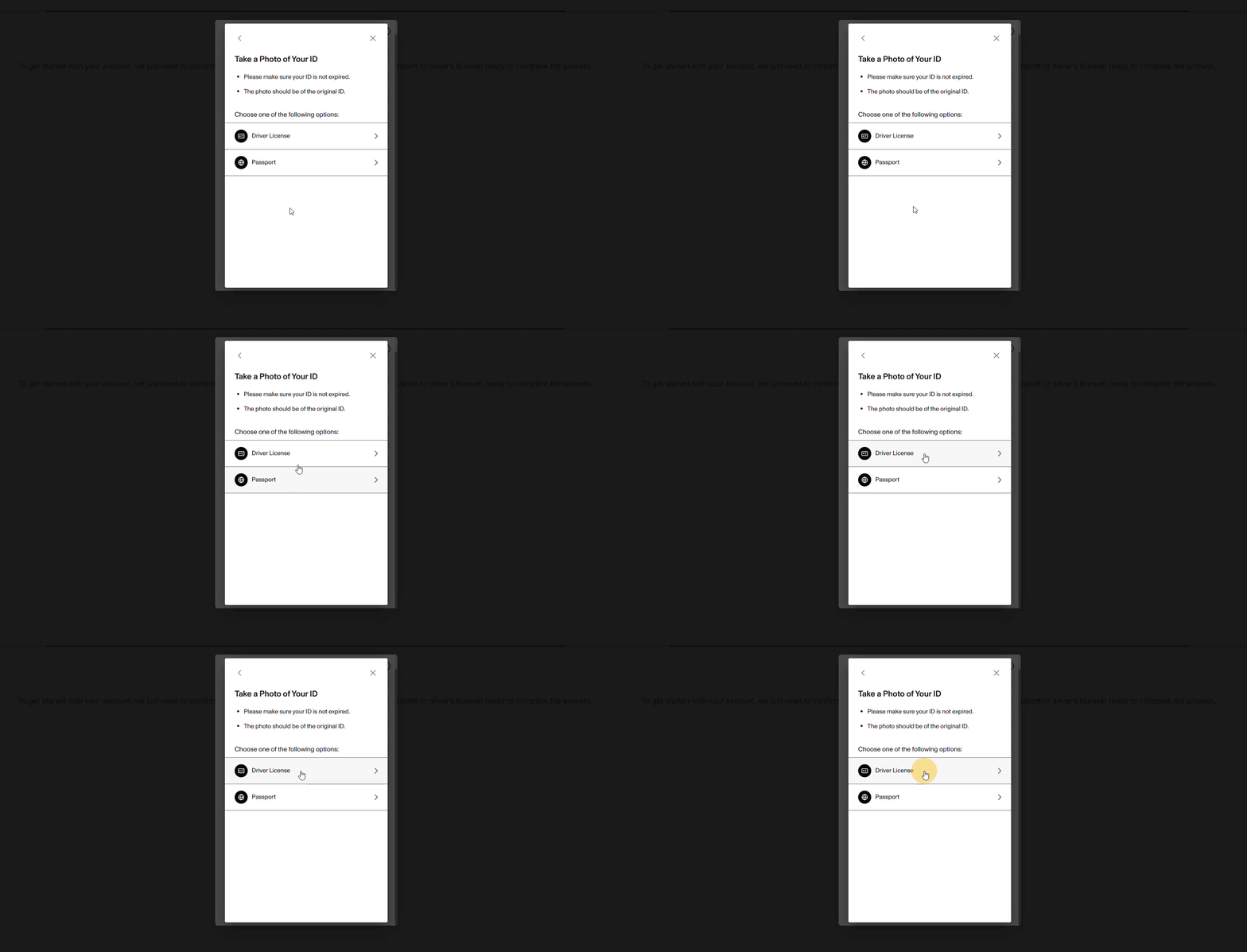
6. Identity verification: Position your ID within the camera frame on your screen. Take a photo, ensuring the text is sharp and there is no glare from lighting or camera flash.
7. Selfie verification: Simply follow the on-screen prompts to complete your biometric face scan. For the best results, make sure you are in a well-lit room and remove any hats, glasses, or headwear. You will then be guided to look straight ahead and gently turn your head to each side.
Processing and Support
- Timeline: Reviewing your documents takes up to two business days. We will email you the moment your identity is approved.
- Assistance: If your upload fails or your images are blurry, we will contact you via email with instructions on how to resubmit.
Step 2: Verify Your Address
1. Click Continue to: Address to move forward, then select Verify My Address.
2. Click Submit Document, then choose Begin Verifying.
3. From the dropdown, select the country where you currently live, then click Select.

4. Begin typing your residential address. Check that your address details are correct, then click Next.
6. Choose Take a photo to capture your proof of address with your webcam, or select Upload to add a document from your computer.
7. Review the image you have taken or uploaded. If any details are unclear, click Retake photo. If everything is correct, select Use this photo.
8. Your address verification is now underway, and your document is being reviewed.
Processing and Support
-
Timeline: Reviewing your documents takes up to two business days. We will email you the moment your account verification is fully approved.
-
Assistance: If your upload fails or your images are blurry, we will contact you via email with instructions on how to resubmit.
Step 3: Protect Your Account with 2FA
After your account has been verified and approved, strengthen your security by enabling two-factor authentication (2FA) using Google Authenticator. For step-by-step instructions, please refer to our guide here.
Need help? If you have questions or need any assistance, please reach out to us here.