
Which documents do I need to set up the account?
To maintain a secure environment and meet Anti-Money Laundering (AML) obligations, Wealth99 requires account verification for all account types. Speed up your onboarding process by ensuring you have the following prepared before you start:
Required Documents by Account Type
-
-
SMSF or Trust Accounts: A full copy of your signed Trust Deed saved as one single file (such as a PDF). Separate page uploads are not accepted.
-
Corporate Accounts: Your company registration details, including your Australian Business Number (ABN) or Australian Company Number (ACN).
-
Key Verification Guidelines
-
-
Identity Verification: Every director, trustee, member, and beneficiary must complete a digital identity check. This requires a valid photo ID and a device with a working camera.
-
Application Signatures: The application must be electronically signed by all directors, trustees, shareholders, members, and beneficiaries.
-
Step 1: Create Your Account
1. Go to the sign-up page here and select Australia as your residential location.
2. Choose your desired account type from the available options.

3. Enter your email address and create a strong, unique password.
4. Review the Terms and Conditions and Privacy Policy, then tick the box to accept.
5. If you have a referral code, enter it in the designated field. If you used a referral link, this will populate automatically. Click Sign Up.

6. Locate the six-digit verification code sent to your email. If it does not arrive within a few minutes, check your spam, junk, and promotions folders. Enter the code on screen to activate your account.
Note: The email verification link expires after a few days. If it expires before you use it, simply request a new code on the login screen.
Step 2: Verify Your Account and Entity Details
1. Log in to your Wealth99 Australia account and click Verify Identity, then Get Started.
2. Enter your entity details. This section is split into three parts:
-
-
Basic Details: Legal Entity Name, ABN/ACN, Phone Number, and Website URL (for companies only).
-
Account Purpose: The intended use of the account and/or the source of your funds.
-
Addresses: Registered Office Address and your Principal Place of Business.
-
3. Provide details for all key personnel (members, directors, trustees, and beneficiaries) associated with the entity. Select their role, then enter their name and email address.
Tip: Click Add New Person to open a new field for additional members
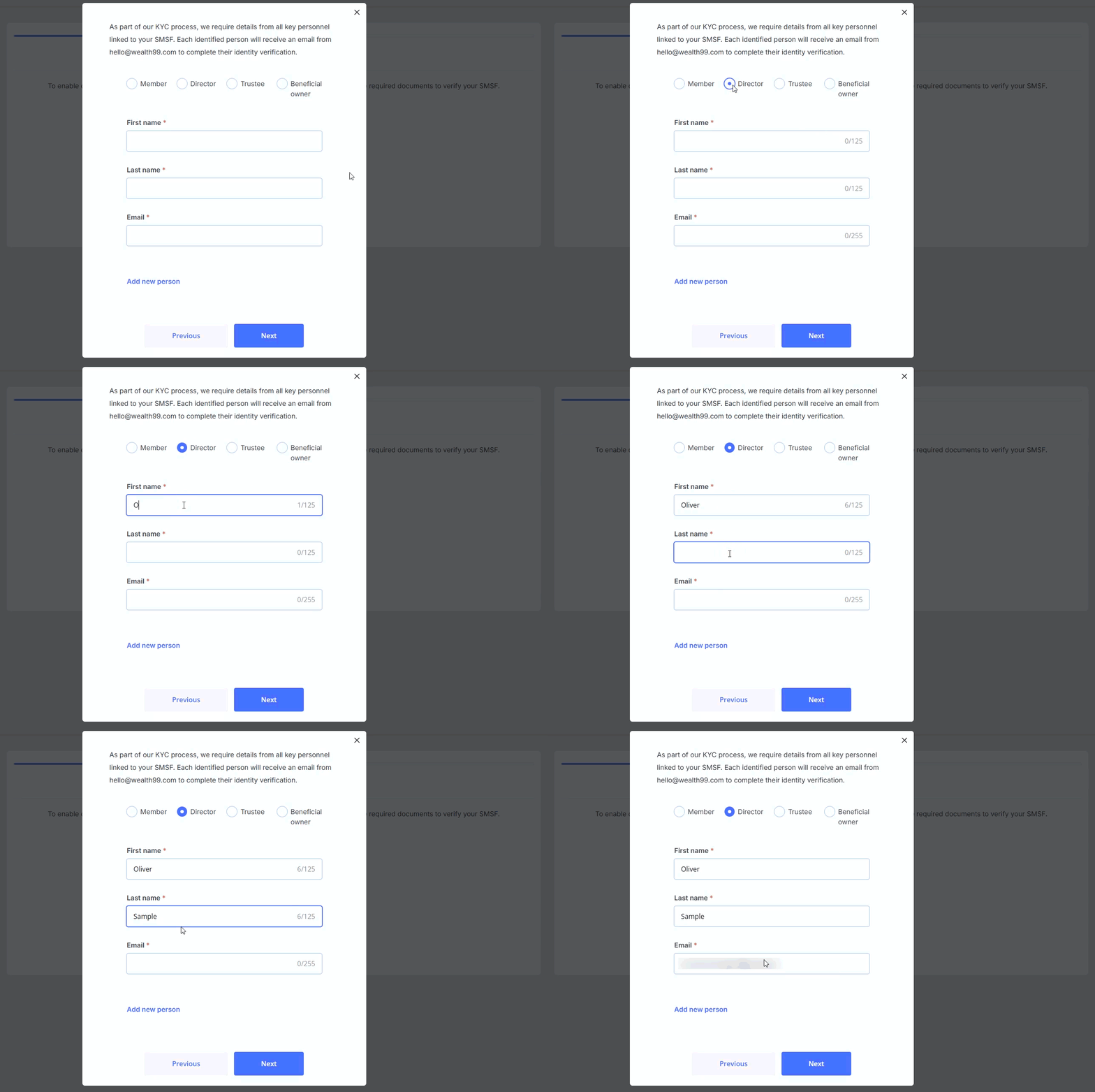
4. Once all key personnel have been added, click Next.
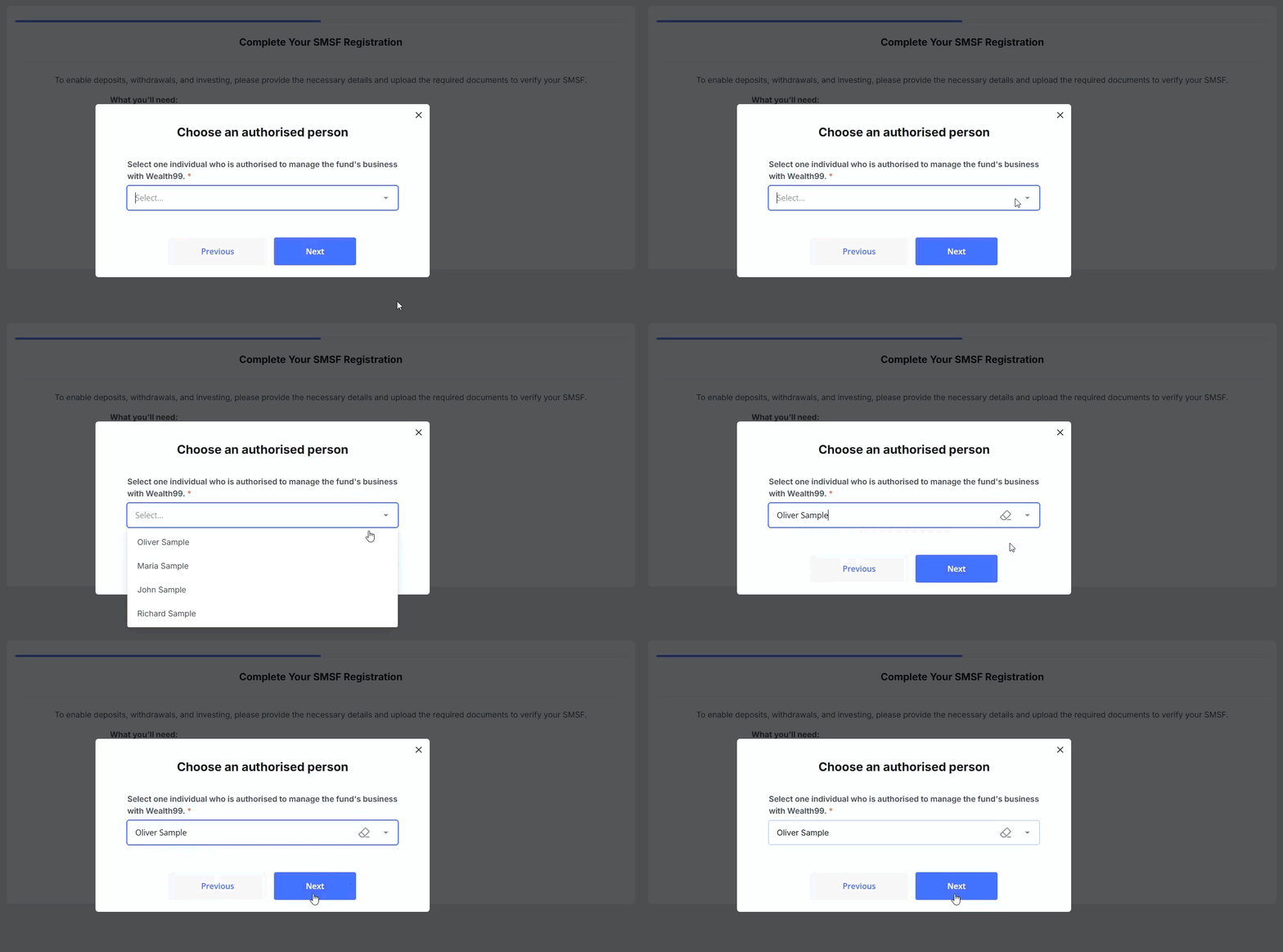
5. Choose the primary person authorised to conduct business on behalf of the entity from the dropdown menu, then click Next.
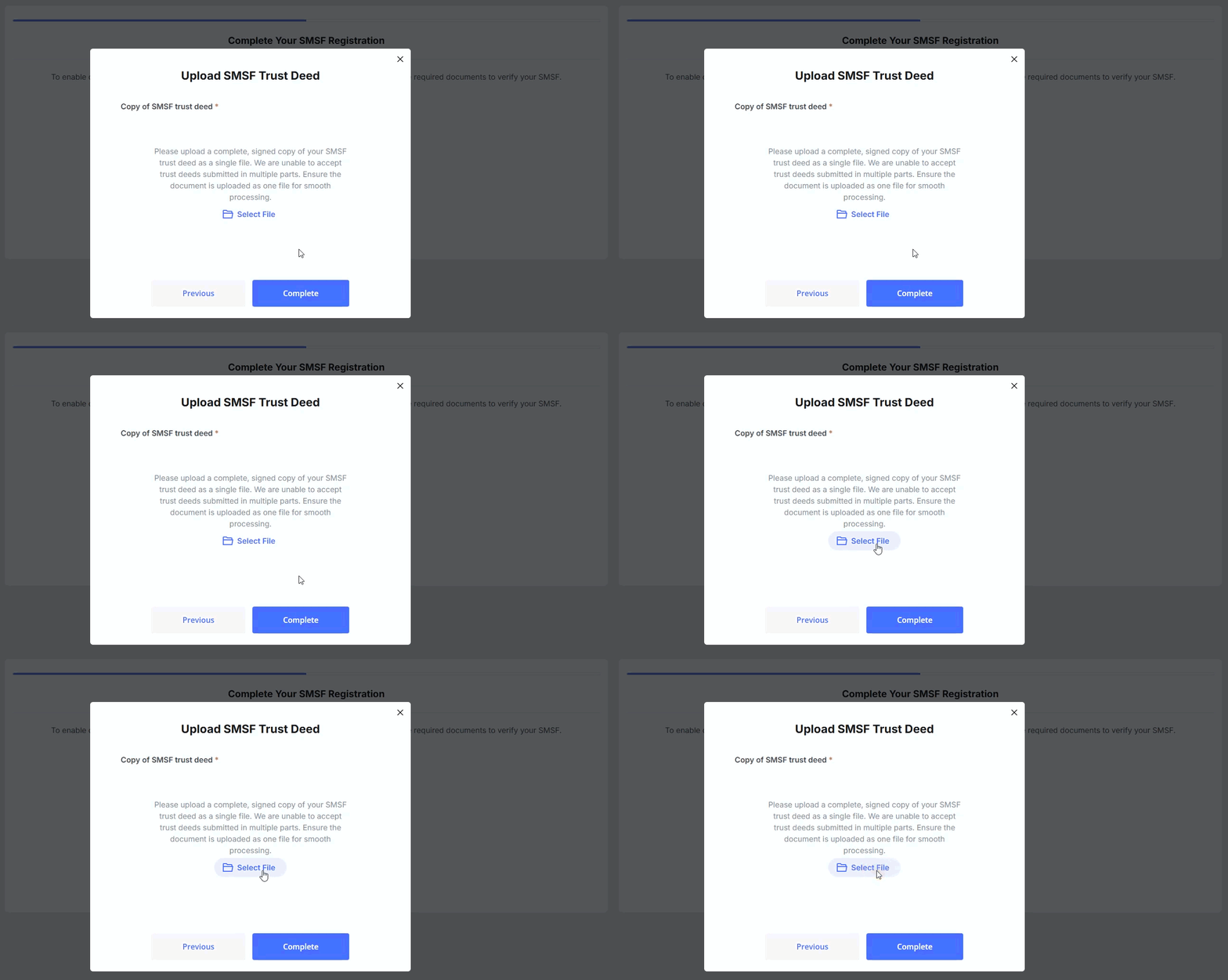
6. For SMSF and Trust accounts only: Click Select File to upload your full, signed Trust Deed as a single document, then click Complete.
Keep in mind: The Trust Deed must be in full version, signed, and merged into a single file.
7. Your application is now submitted for initial review.
Step 3: Key Personnel Verification
Within 2 to 4 working days, each listed person will receive an email from no-reply@wealth99.com containing a link to complete their personal identity check and/or digital signature on the application form. Please check all inbox folders, including spam/junk.
Before Starting the Check:
- Use a mobile device for the smoothest experience.
- Ensure your device has a working camera.
- Turn off any active VPNs to avoid technical errors.
- Have your original, physical ID ready (digital copies or printouts cannot be accepted). You can use either a passport or a driver's license.
Completing the Check:
1. Click the blue button inside the verification email to begin.
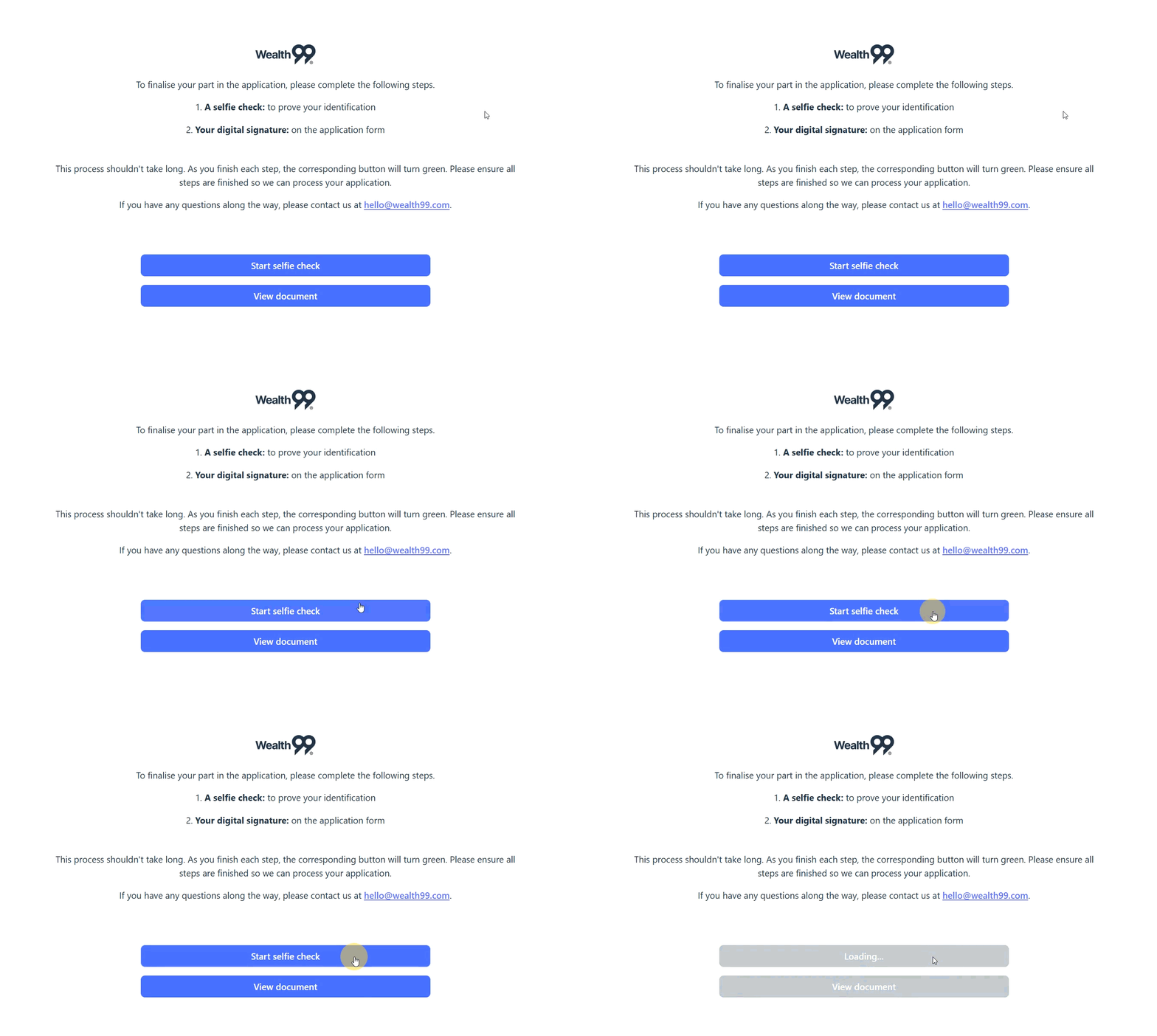
2. Selfie Check: Follow the on-screen prompts to take a photo of your physical ID card using your device's camera and perform a live selfie verification. You'll be asked to look forward and then to each side.
3. Document Signature: If prompted, provide your digital signature in the highlighted sections of the document, then click Finish.
---6.gif?width=670&height=499&name=AU-_-How-do-I-verify-my-corporate-or-SMSF-account_-(New-version)---6.gif)
Step Completion & Next Steps
-
Track Your Progress: Once a step is successfully finished, the corresponding button will turn green. If you were asked to do both a selfie check and a signature, ensure both buttons have turned green.
-
Review Period: After all key personnel have completed their required steps, our team will review the submitted information.
-
Final Approval: The primary account contact will receive the official application results via email.
Need help? If you have questions or need any assistance, please reach out to us here.
Step 4: Protect Your Account with 2FA
After your account has been verified and approved, strengthen your security by enabling two-factor authentication (2FA) using Google Authenticator. For step-by-step instructions, please refer to our guide here.